Desktop Applications Testing: A Practical Guide to Desktop Test Automation with Appium
Desktop applications testing confirms UI, functionality, performance, compatibility, and security of native desktop programs across operating systems. This guide shows how Appium — a WebDriver-based, language-agnostic automation layer — enables reusable desktop tests, the minimal setup to run a first session, key concepts such as Desired Capabilities and selectors, and practical steps to stabilize and scale suites in CI/CD. Short, platform-specific notes for Windows, macOS, and Linux help you plan a portable automation strategy.
Key Takeaways
- Verify UI, functionality, performance, and compatibility across OSes.
- Appium uses the WebDriver API so tests are reusable across drivers.
- Platform drivers (e.g., WinAppDriver) map WebDriver calls to native UI actions.
- Setup requires Appium Server, a platform driver, and Desired Capabilities.
- Use semantic locators and the Appium Inspector for stable selectors.
- Isolate platform-specific code to keep tests maintainable.
- Scale with CI/CD, data-driven tests, and flaky-test mitigation.
- Provide observability (logs, screenshots) and participate in the community.
- Appium supports many languages so teams can reuse existing test tooling.
What is Desktop Applications Testing and how does Appium fit?
Desktop testing verifies a program’s UI, behavior, OS integrations, and runtime performance. Appium provides a WebDriver-based API that forwards standard automation commands to platform-specific drivers, allowing teams to write tests in familiar client libraries and reuse logic across platforms. Appium Desktop and the Appium Inspector speed locator discovery and reduce first-run friction.
Why use Appium for desktop automation?
Appium exposes a consistent WebDriver API across device and desktop drivers, reducing duplicate test work and easing maintenance. Its open-source, language-agnostic model lets teams use existing Selenium/WebDriver knowledge and integrate tests into existing frameworks and CI pipelines.
The importance of such unified automation frameworks for diverse platforms is further underscored by academic research into cross-platform testing solutions.
Automated Cross-Platform Desktop & Mobile Testing
This thesis studies the requirements and opportunities for developing a test automation system for testing the functionality of desktop and mobile applications using real and virtual devices. The client applications are developed for Android and Windows devices. These client applications are part of RFID systems and RFID readers play a major part in client operations.
Automated acceptance testing of desktop and mobile cross-platform applications in continuous integration systems, 2022
How does Appium integrate with WinAppDriver and WebDriver Protocol?
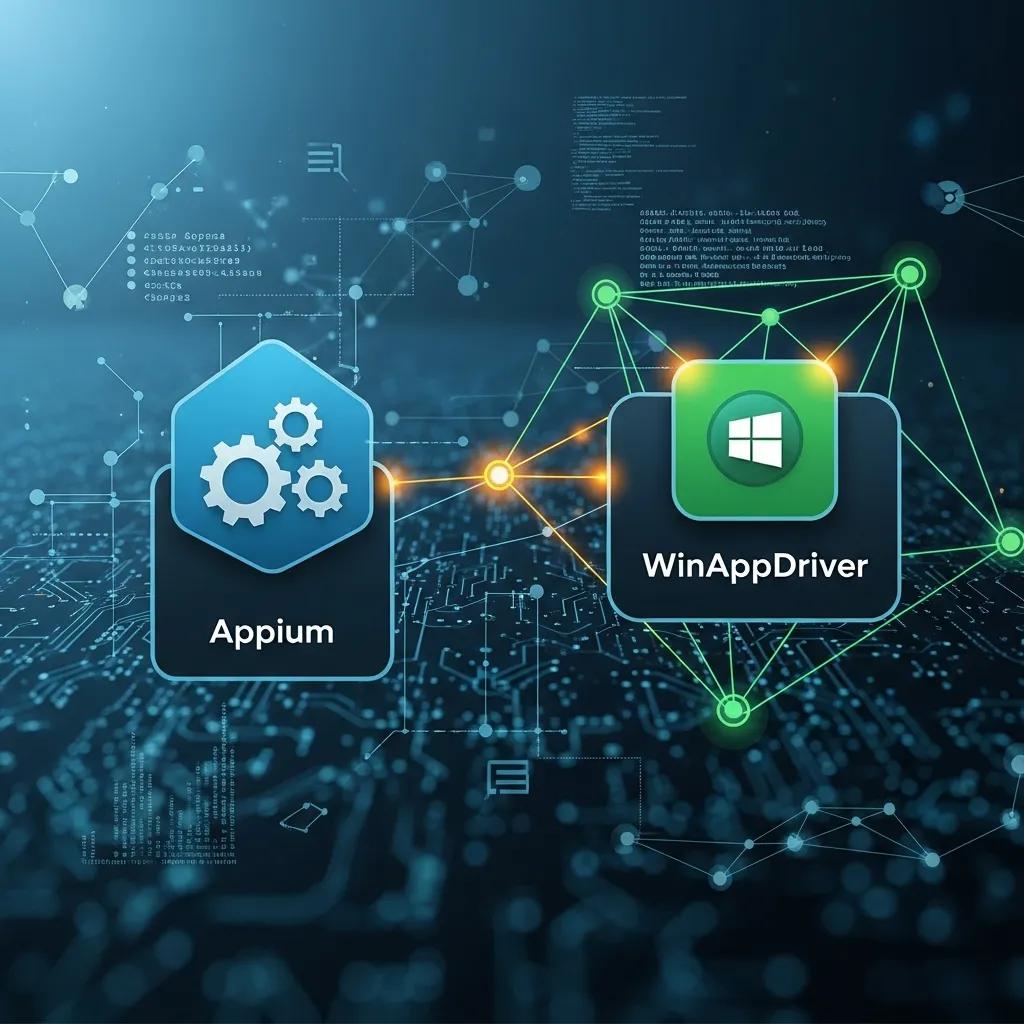
Appium receives WebDriver Protocol calls from client libraries and forwards them to a platform driver (for example, WinAppDriver on Windows). The command flow — test client → Appium Server → platform driver → application under test — preserves standard WebDriver semantics while using driver-level access to native UI frameworks, enabling portable selectors and session parameters.
How do you get started with Appium for desktop automation?
Start by installing the Appium Server and the platform driver for your OS, then run a minimal session that sets Desired Capabilities and interacts with a UI element. A successful first test confirms the Appium Server, driver, and client communicate and that inspector-captured selectors target real controls.
Prerequisites for Windows, macOS, and Linux desktop testing
- Windows: Appium + compatible platform driver (commonly WinAppDriver) and Node.js.
- macOS: Appium + enabled accessibility APIs and required developer runtimes.
- Linux: Appium + available desktop automation bridges or accessibility frameworks (e.g., AT-SPI on GNOME).
Verify driver compatibility and runtime availability before authoring tests.
Step-by-step setup for desktop automation
- Install Node.js and add Appium to run the Appium Server locally.
- Install and start the platform driver or service for the target OS.
- Open Appium Desktop and use the Inspector to capture element trees and attributes.
- Create a simple test with Desired Capabilities that connects to Appium, finds an element, and performs an action.
| Platform | Requirement | Notes |
|---|---|---|
| Windows | Platform driver and Appium | Typically WinAppDriver and Node.js for Appium |
| macOS | Accessibility API access and Appium | Enable accessibility permissions for UI inspection |
| Linux | Desktop automation bridge and Appium | Verify drivers and accessibility frameworks like AT-SPI |
Confirm these prerequisites before authoring tests.
What are the essential desktop automation concepts with Appium?
Key concepts are Desired Capabilities (session parameters), element locators (Accessibility ID, XPath, ClassName, etc.), and the Appium Inspector (for discovering stable selectors). Choosing robust locator strategies and using the inspector avoids brittle position-based tests.
Core concepts: Desired Capabilities, Element Locators, and Appium Inspector
- Desired Capabilities: Parameters that select driver, platform, and app.
- Element Locators: Accessibility ID, XPath, ClassName — pick stable, semantic selectors.
- Appium Inspector: GUI tool to inspect element hierarchy and validate queries.
These work together: capabilities open a session, the inspector helps craft locators, and stable locators make tests resilient to UI changes.
| Capability | Attribute | Example Value |
|---|---|---|
| platformName | Target OS | “Windows”, “macOS”, “Linux” |
| automationName | Driver type | “WinAppDriver”, “Mac2” |
| app | Application identifier | Path to executable or top-level window handle |
Set these properties when bootstrapping desktop sessions.
Cross-platform considerations for desktop testing
Account for UI framework differences (Win32/WPF on Windows, AppKit on macOS, various Linux toolkits). Favor semantic identifiers and page-object patterns, isolate platform-specific adapters, and implement fallback locator strategies or conditional steps to preserve test intent across OSes.
How can you advance and optimize desktop automation with Appium?
To scale, integrate tests into CI/CD, adopt data-driven suites, mitigate flaky tests, and collect performance-aware artifacts. Capture logs, screenshots, and inspector snapshots to speed triage and maintain reliable runs.
CI/CD integration and data-driven testing for desktop apps
- Provision CI agents with required runtimes and drivers; ensure Appium runs in the CI environment or a desktop session.
- Separate test data (CSV/JSON/fixtures) and parameterize tests to cover scenarios from single scripts.
- Collect artifacts from failures and feed fixes back into locators and timings.
| Strategy | Attribute | CI/CD/Optimization Tip |
|---|---|---|
| Data-driven tests | Separation of data and logic | Use parameterized tests to avoid duplication |
| Flaky test handling | Retry and isolation | Apply targeted retries and isolate shared state |
| CI integration | Environment provisioning | Ensure drivers and Appium Server are available on agents |
These practices make automated desktop pipelines more reliable and actionable.
Best practices and community contributions in Appium Desktop ecosystem

- Use modular locators and page objects to localize UI changes.
- Capture logs, screenshots, and session dumps for observability.
- Contribute issues or patches to community channels to improve tooling.
For deeper discussion and contribution, visit discuss.appium.io and the appium/appium repository on GitHub. Community participation helps improve drivers and inspector tooling.
- Modular Design: Encapsulate selectors and interactions.
- Observability: Collect logs and artifacts for fast diagnosis.
- Community Participation: Report issues and submit fixes upstream.
These practices support maintainable, high-quality test suites.
| Area | Attribute | Recommended Action |
|---|---|---|
| Maintainability | Locator centralization | Use page-object patterns and shared locator files |
| Stability | Timeouts and retries | Tune explicit waits and avoid hard sleeps |
| Community | Contribution channels | Report issues and submit pull requests |
This table ties practices to actions you can take when scaling desktop automation with Appium.
Frequently Asked Questions
What are the main benefits of using Appium for desktop application testing?
Appium provides cross-platform reuse via the WebDriver API, supports many client languages, and integrates with existing test frameworks and CI pipelines, reducing duplicate effort and enabling teams to use familiar tools.
How can I troubleshoot common issues when using Appium for desktop testing?
Check driver compatibility and dependencies, examine Appium and driver logs, verify selectors with the Inspector, and reproduce issues locally. Community forums and docs often contain practical fixes.
What are the differences between testing on Windows, macOS, and Linux with Appium?
Differences arise from native UI frameworks and accessibility APIs: Windows commonly uses WinAppDriver, macOS requires accessibility permissions, and Linux may need environment-specific bridges such as AT-SPI. These affect setup and locator choices.
What role does the Appium Inspector play in desktop automation?
The Inspector visually exposes the element tree, attributes, and selector evaluation, helping testers capture stable locators and debug selector issues before automation runs.
How can I ensure my automated tests are maintainable over time?
Use page-object patterns, centralize locators, adopt data-driven tests, tune waits instead of sleeps, collect artifacts for failures, and periodically refactor tests as the UI evolves.
What are some advanced strategies for optimizing Appium desktop automation?
Integrate tests in CI/CD, parameterize scenarios, isolate environment state, apply targeted retries for flaky cases, and collect performance metrics and artifacts to guide improvements.
Conclusion
Appium brings a unified WebDriver API to desktop automation, enabling portable tests and integration with existing toolchains. Start by validating your environment, using the Appium Inspector to build stable selectors, and iterating on CI integration and observability. Participate in the Appium community to improve drivers and tooling as your suite scales.